


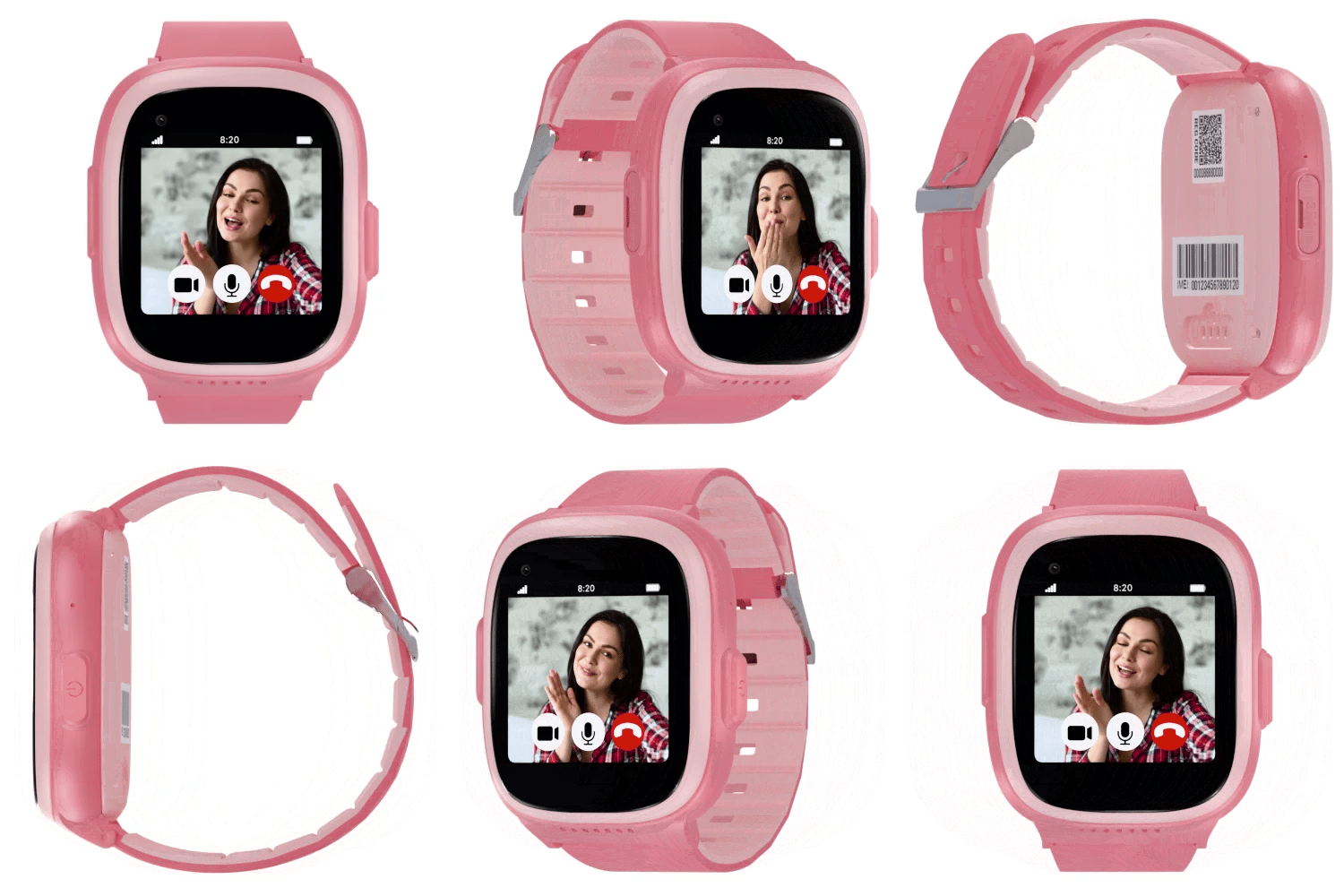


SecuLife Device Setup & Activation Guide
Set up your SecuLife senior GPS safety device. Find activation instructions, SecuPro app setup,
SOS emergency contacts, fall detection, and GPS tracking guides.
Choose Your Device

Senior SOS Safety Pendant
View Setup +
Senior Fall Detection Smartwatch
View Setup +
Senior Fall Alert Wristband
View Setup +
Fall Alert Smartwatch
View Setup +
Activate Your SOS Pendant
Activate your SecuLife SOS Pendant's cellular service plan to enable GPS tracking, emergency SOS calling, fall detection alerts, and other safety features.
Find the SIM card number on your SOS Pendant's product box. The SIM card is already installed in your device.
Visit activate.seculife.us and follow the activation instructions.
During activation, enter your email address and create a password. These credentials will also be used to access the SecuPro mobile app.
You'll receive an email confirming activation and providing your pendant's new phone number. Save this information for future reference.

Do not remove or replace the pre-installed SIM card. The device only works with the included SIM.

Set Up Your SecuPro Mobile App
Get your SecuLife SOS Pendant ready and connect with the SecuPro mobile app to view GPS locations and receive alerts.
Step 1: Charge Your SOS Pendant
Connect the included magnetic USB charging cable to the device charging contacts. Fully charge your SOS pendant overnight before first use.

Step 2: Turn On Your SOS Pendant
Press and hold the SOS button on the SOS Pendant face for up to 3 seconds until the screen lights up.

Step 3: Download the SecuPro Mobile App
Scan the QR code or click on the icons to download the app on the Apple App Store or Google Play Store.


Step 4: Sign In to the SecuPro App
Enter the email address and the password you created during service activation.


Configure SOS Pendant Safety Features
Customize your SecuLife SOS Pendant's safety settings, add emergency SOS contacts, enable fall detection, and create GPS geofence safe zones.
 ?? Click to expand image

Extend the SOS Pendant's Battery Life
Learn how battery life depends on your usage, and get tips to maximize performance and keep your SOS Pendant ready when you need it.
Customize Your GPS Tracking Frequency
Control how often your SecuLife S8 SOS Pendant reports its location. More frequent GPS updates provide detailed location tracking but consume more battery power.
How to Setup the GPS Tracking Interval Settings
- Open the SecuPro App and navigate to AI Tracking Interval.
- Select your preferred GPS tracking frequency.
- Tap Save to apply your settings.
 ?? Click to expand image
Optimize Battery Life for Everyday Activities
Your daily routine can help determine the ideal GPS tracking frequency. Select a setting that provides the location updates you need without unnecessarily draining your SecuLife SOS Pendant battery.

For seniors who are frequently on the move and need more frequent location updates.


For seniors who enjoy regular walks, errands, social outings, and activities outside the home.


For seniors who balance time at home with regular but not constant outings.


For seniors who spend most of their time at home and make only occasional trips out.


For seniors who rarely leave home and need less frequent location updates.

Battery-Saving Tip: Longer tracking intervals reduce GPS activity and help extend battery life.
Maximize Battery Life With AI Smart Tracking
Enabling AI Smart Tracking sets the system to run at 60-minute intervals (e.g., from 8:30 AM to 5:30 PM).
Ideal for seniors who attend regular daily scheduled activities such as senior center events where frequent GPS location updates may not be necessary during supervised daytime hours.
How to Enable AI Smart Tracking
- Open the SecuPro App.
- Navigate to AI Tracking Interval.
- Turn ON the AI Smart Tracking toggle to activate the feature.
- Turn OFF to disable automatic daytime adjustments.
 ?? Click to expand image
Stay Connected With Emergency Location Updates
Emergency Mode GPS Tracking is triggered either by a family member activating emergency mode in the app, pressing the physical SOS button on the pendant or automatically when a fall is detected.
How Emergency GPS Tracking Works
- Activate Emergency Mode: An SOS alert or supported fall detection event automatically activates Emergency Mode. Caregivers can also activate Emergency Mode manually through the SecuPro App.
- Frequent GPS Updates: The SOS Pendant begins reporting GPS location updates every minute.
- Monitor Location: Caregivers can view updated GPS locations through the SecuPro App.
- Emergency Tracking Duration: Emergency Mode continues for up to one hour unless manually deactivated.
Emergency Tracking and Battery Performance
Emergency Mode prioritizes frequent GPS updates over battery conservation. The increased tracking frequency uses more power than standard or extended GPS tracking intervals.
Battery-Saving Tip: Emergency GPS tracking is designed for urgent situations. For everyday use, maintain a longer GPS tracking interval to help preserve battery life.
Important Note: Emergency Mode may temporarily override your standard GPS tracking interval to prioritize location updates during an emergency.
 ?? Click to expand image
Request an Updated GPS Location Anytime
Need to check the pendant wearer's location between scheduled GPS updates? Use the SecuPro App to refresh the current available location without permanently changing your tracking frequency.
How to Refresh GPS Location
- Open the SecuPro App.
- Tap Map to view the reported location.
- Tap Update Location to refresh your device’s current location.
Manual Refresh and Battery Performance
Manual Location Refresh allows caregivers to request additional location updates between scheduled GPS tracking intervals. This provides flexibility without requiring the pendant to operate continuously at its shortest tracking interval.
Battery-Saving Tip: Instead of setting GPS tracking to every minute, use Manual Location Refresh when an additional location check is needed. This helps preserve battery life with location monitoring.
Important Note: GPS location updates depend on cellular connectivity, satellite signal availability, and device status.
 ?? Click to expand image


Configure Key Safety Features
Learn how to set up each feature in the SecuPro app.


Safe Zones / Geofencing
Create a Safe Zone, set its radius, and receive entry and exit notifications.
Step-by-Step Instructions:


Approved Contacts
Add trusted callers to the Phonebook and explain how unknown numbers are blocked.
Step-by-Step Instructions:


Live GPS Map & Tracking History
View the device's location, request an update, and review previous movements.
Step-by-Step Instructions:


Alerts & Notifications
Configure SMS, email, and app alerts for emergencies, Safe Zones, and device events.
Step-by-Step Instructions:


Add Family & Caregivers
Allow additional trusted family members to monitor location and receive alerts.
Step-by-Step Instructions:


Watch the Setup Videos
Short, step-by-step videos to help you get up and running quickly.
 1:45
1:45
1. Activate Your Device
Learn how to activate your SecuLife device and get your phone number.
 2:08
2:08
2. Download & Set Up SecuPro
Install the app, sign in, and connect your device.
 2:15
2:15
3. SOS & Fall Detection
Set up emergency contacts, enable fall alerts, and learn about Emergency Mode.
 2:17
2:17
4. GPS Tracking & Geofence
View location, set up Geo-Fences, and receive alerts.
SecuLife Help Center
Senior Safety Device Setup, FAQs & Troubleshooting
Why is my SecuLife senior GPS smartwatch battery draining so quickly?
How can I make my SecuLife SOS Pendant or GPS wristband battery last longer?
Why isn't my SecuLife senior safety device charging?
Does SOS emergency tracking use more battery?
Why is my SecuLife GPS tracker showing the wrong location?
Why is my parent's GPS smartwatch showing an old location?
Why is my SecuLife device showing offline?
Does SecuLife GPS tracking work without Wi-Fi?
Why didn't I receive a geofence alert when my parent left home?
Why are SecuLife geofence notifications delayed?
How do I fix a SecuLife safe zone that isn't sending notifications?
Can I receive an alert when my elderly parent arrives home?
Why isn't my SecuLife SOS button sending an emergency alert?
Why does my SecuLife SOS button make a call but not send a text alert?
Why didn't my SecuLife device detect a fall?
Why does my senior smartwatch keep sending false fall alerts?
Why isn't my daughter receiving SecuLife alerts after I added her phone number?
What's the difference between an emergency contact and a SecuPro caregiver?
Why can my son call my SecuLife watch but not see my GPS location?
Can multiple family members receive SecuLife emergency alerts?
Why am I receiving SOS text messages but no app notifications?
How can I monitor my elderly parent if we live in different states?
Why isn't the SecuPro Mobile App updating my parent's location?
Why am I not receiving low-battery alerts?
Can I use SecuLife without carrying a smartphone?
How do I add another family member to my SecuLife safety device?
No matching answers found
Try searching common terms like watch, wristband, pendant, tracker, offline, or battery.
Contact SecuLife Support